
How to Use the REPSLog Calendar Integration to Sync Calendar Events
REPSLog’s calendar integration helps you turn real calendar events into compliant REPSLog entries quickly and accurately.
Supported Platforms
iPhone (iOS)
Uses the Calendar app on your iPhone
If you use another provider (such as Google Calendar, Outlook, or Exchange), you must first sync that calendar with Apple Calendar in your iPhone settings
Android
Uses the Google Calendar app
How to Connect Your Calendar
You can connect your calendar in two ways:
Option A:
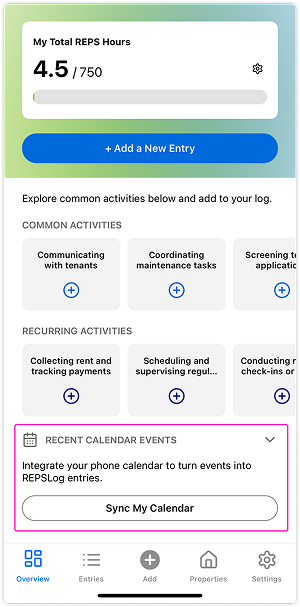
Go to the Overview page
Scroll to the Calendar Events section
Tap the Sync My Calendar button
-
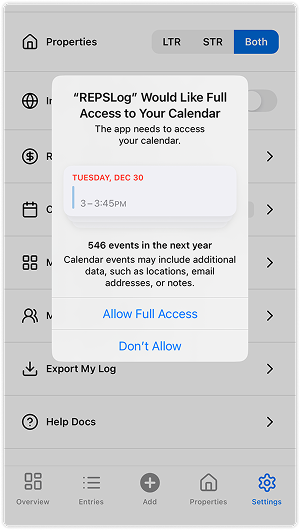
When prompted, choose Allow Full Access to calendars
Option B:
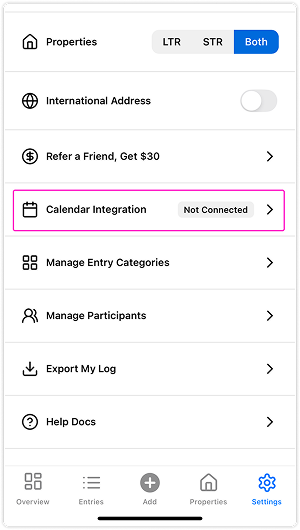
Go to Settings → Calendar Integration
Tap the arrow icon
When prompted, choose Allow Full Access to calendars
Adding Calendar Events as REPSLog Entries
Once your calendar is connected, your recent events will appear on the Overview tab, with access to the full calendar in the expanded view.
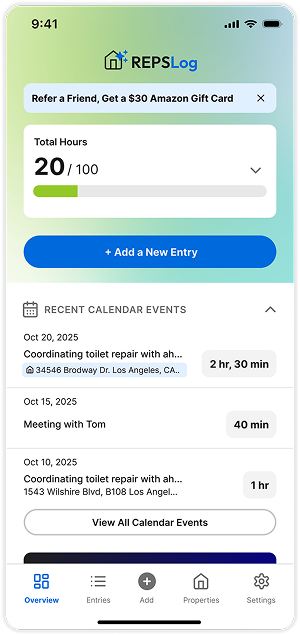
In the expanded calendar view, events are shown in a weekly layout by default. You can navigate between weeks using the arrow buttons, or drag the expand handle downward to switch to a monthly view for a broader look at your schedule.
To add events as entries, simply select one or more calendar events you want to log.
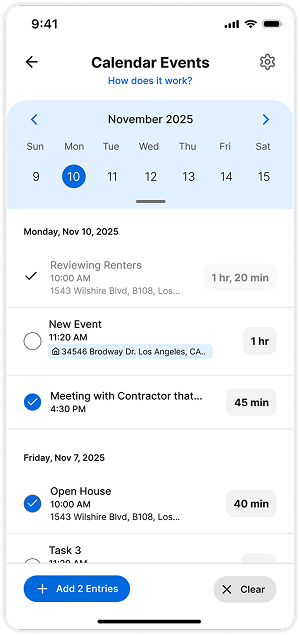
For each calendar event, REPSLog attempts to extract:
Event name
Description
Duration
Address -if matched to a property in REPSLog, it will be assigned automatically.
After selecting an event, you’ll have a chance to review and edit the entry details before saving.
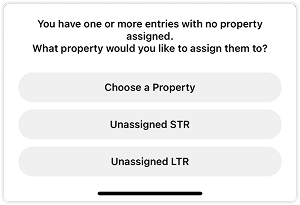
If you select multiple events and one or more of them do not have a property assigned, REPSLog will prompt you to choose which property to assign before completing the entries.
You can also control which calendars are included in the sync. To do this, tap the gear icon (⚙️) in the top-right corner and select the specific calendars you want REPSLog to pull events from.
Best practice: In your calendar app, create a separate calendar for all real estate–related events. When syncing with REPSLog, select only that calendar so you can focus on viewing and logging relevant events without distractions.
FAQs
How do I sync Google Calendar with my iPhone?
On your iPhone:
Go to Settings → Calendar → Accounts
Tap Add Account
Select Google
Sign in and enable Calendars
Your Google events will now appear in Apple Calendar and in REPSLog.
Why are some events not showing up?
This is usually due to Apple / Google sync delays.
What to try:
Wait 1–2 hours
Fully close and reopen the REPSLog app
Make sure the calendar is enabled via the ⚙️ calendar settings
Can I add future events?
No. Only past events can be converted into REPSLog entries.
What if I changed an event after adding it to REPSLog?
REPSLog does not auto-update existing entries.
You can go to your REPSLog entries and manually edit the entry to reflect the changes.
Is the calendar integration available on the desktop version?
The calendar integration is currently available on mobile only, and the desktop version will be supported in the future.
How do I disconnect my calendar from REPSLog?
iPhone
Go to Settings → Privacy & Security → Calendars
Select REPSLog
Set permission to None
Android
Go to Settings → Apps → REPSLog
Tap Permissions
Disable Calendar access