
How to use the REPSLog Timer for Live REPS Tracking
The Timer lets you track your REPS activities in real time — without manually calculating durations later.
This feature is currently available on the REPSLog mobile app.
How to start the Timer
Go to the Overview screen
Tap the Start Timer button
Tap Start
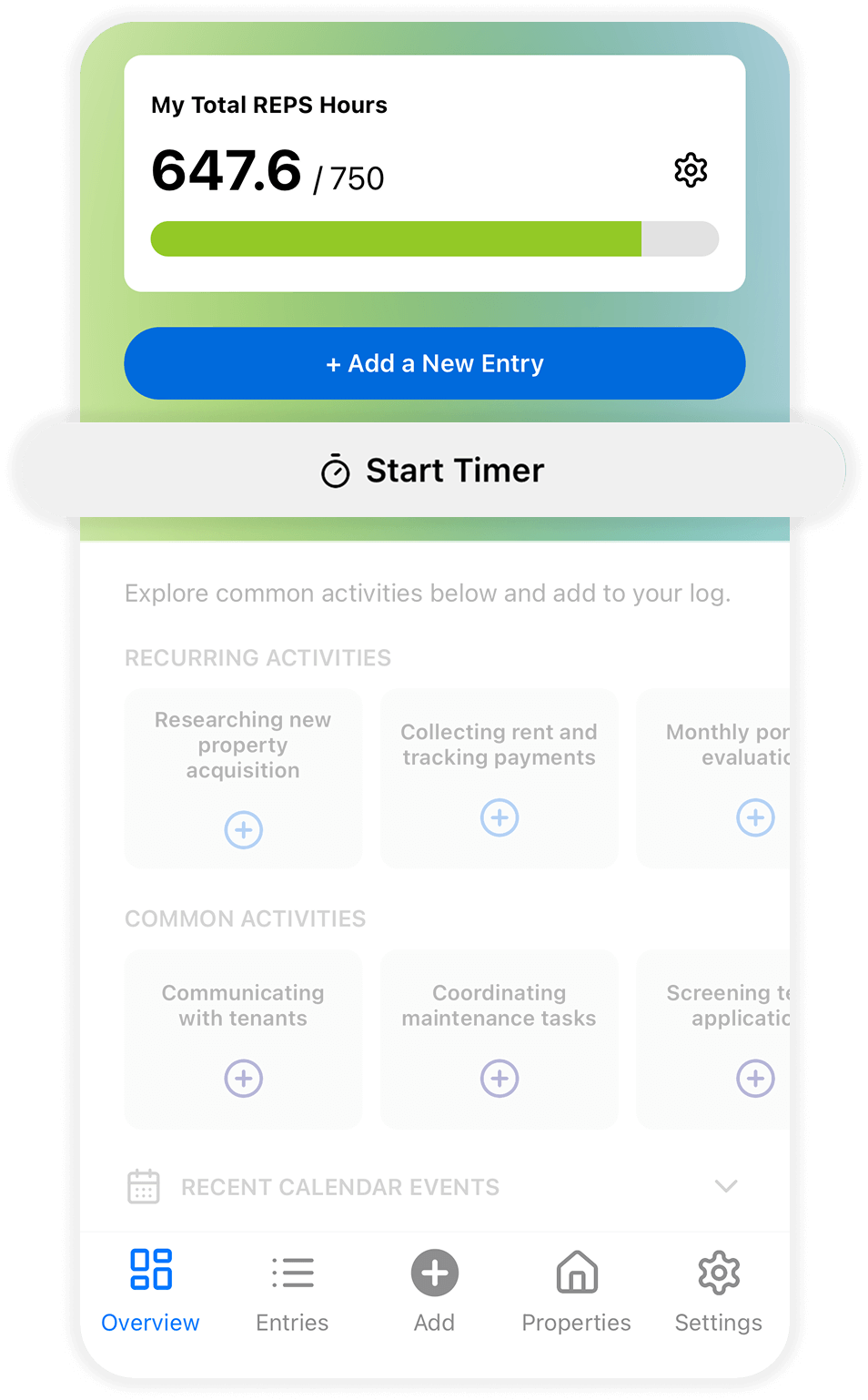
Once started, the timer begins recording your activity time.
Timer controls: Complete, Pause, and Cancel
After you start recording, you’ll see three options:
✅ Complete
Use Complete when you finish your activity.
The tracked time will be added to a new entry
You’ll be able to review and adjust the duration before saving
⏸️ Pause
Use Pause if you need to temporarily stop tracking.
The timer stops counting
You can resume later without losing the recorded time
This is helpful if you take a break or switch to a non-REPS activity.
❌ Cancel
Use Cancel if you started the timer by mistake.
The recording will be discarded
No entry will be created
Does the Timer keep running in the background?
Yes. Once started, the timer continues running in the background while you use other apps or lock your phone.
You don’t need to keep the app open.
Where do I see the tracked time?
When you tap Complete:
The recorded duration will appear in your entry automatically
You can edit or adjust the duration anytime before saving
Tips for best use
Start the timer when beginning a REPS-related activity (calls, research, property visits, etc.)
Pause instead of canceling if you plan to continue the same task
Always review the duration before saving your entry